
Explicit Proxy Settings: Setup, PAC Files & Automation
Learn explicit proxy settings: how they differ from transparent proxies, configure browsers and firewalls, use PAC files, and apply them to browser automation.
Explicit Proxy Settings: Setup, PAC Files & Automation
Explicit proxy settings tell a client—a browser, an app, or an automation script—to send its traffic through a proxy on purpose. Unlike transparent interception, the client knows the proxy exists, which makes traffic easier to control, log, and troubleshoot. This article explains how explicit proxy settings work, how to configure them on browsers and firewalls, how PAC files fit in, and what changes when the client is a headless browser instead of a person.
What Are Explicit Proxy Settings?
First viewport screenshot of Browser Tasks | AdsCrawl Documentation.
An explicit proxy is a proxy configuration that the client applies deliberately. You enter a proxy address and port in the application, or you point the application at a Proxy Auto-Configuration (PAC) file that decides which requests use the proxy. The client then sends HTTP and HTTPS requests directly to the proxy, and the proxy forwards them to the destination.
This is the opposite of a transparent proxy, where a network device intercepts traffic without the client's knowledge. Because the client is aware of the explicit proxy, it is easier to see whether traffic is being proxied, test alternate routes, and isolate configuration problems. Vendor documentation for Palo Alto Networks and Azure Firewall both highlight this visibility as a practical advantage.
Explicit vs. transparent proxies
| Aspect | Explicit proxy | Transparent proxy |
|---|---|---|
| Client awareness | Client is configured with proxy address or PAC file | Client is unaware; traffic is intercepted inline |
| Setup location | Client or application settings | Network routing, firewall, or gateway |
| Troubleshooting | Easier—you can inspect client settings directly | Harder—interception happens outside the client |
| Typical use | Managed egress, browser automation, policy control | Inline inspection with minimal client changes |
Where Explicit Proxy Settings Appear
Explicit proxy settings show up at three layers, and it helps to know which one you are changing.
- Client level. Browsers and operating systems accept a manual proxy address or a PAC file URL. This is the most common meaning of "explicit proxy settings."
- Network security level. Firewalls such as Palo Alto Networks NGFW, FortiGate, and Azure Firewall can run an explicit web proxy. Clients point at the firewall's listening interface, and the firewall applies policy, authentication, and logging.
- Automation level. Headless browsers and scraping frameworks accept proxy configuration in code or launch flags. This is where explicit settings matter most for developers.
Configuring Explicit Proxy Settings in a Browser
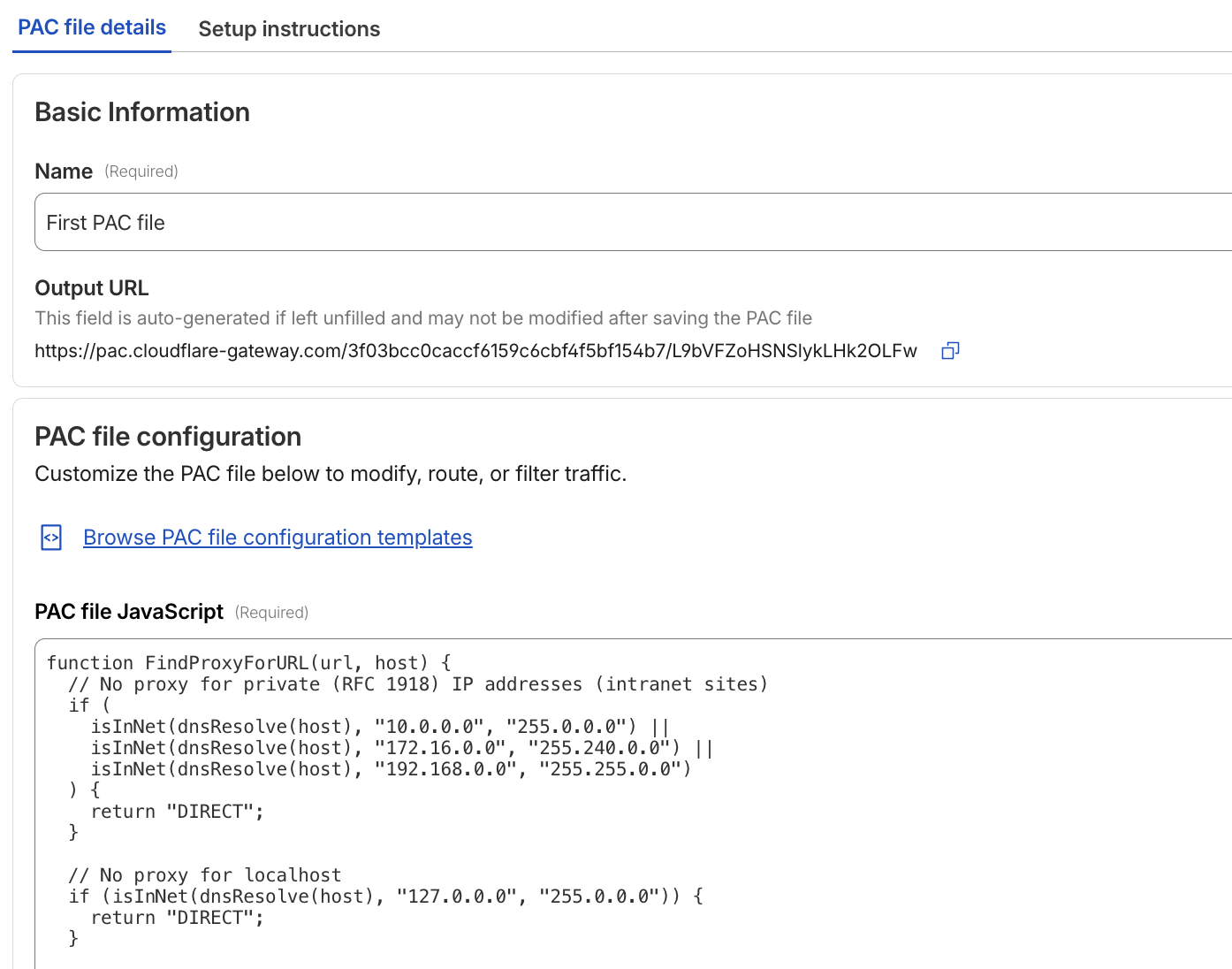
Explicit Proxy Settings: Setup, PAC Files & Automation - Configuring Explicit Proxy Settings in a Browser.
Most desktop browsers expose the same basic fields:
- Proxy address and port for HTTP and HTTPS traffic.
- Exceptions or bypass list for hosts that should connect directly.
- PAC file URL as an alternative to a fixed address.
On Windows, these settings are often managed through the system proxy panel or Group Policy. On macOS, they live under network proxy settings. On Linux, environment variables such as HTTP_PROXY, HTTPS_PROXY, and NO_PROXY are common, though browser behavior varies.
A simple manual configuration looks like this:
HTTP proxy:  proxy.example.net:8080
HTTPS proxy: proxy.example.net:8080
Bypass:      localhost, 127.0.0.1, *.internal.example
If the proxy requires authentication, the client will usually prompt for credentials or read them from the operating system's credential store. Avoid hard-coding credentials in scripts or shared configuration files.
Using PAC Files for Explicit Proxy Configuration
Explicit Proxy Settings: Setup, PAC Files & Automation - Using PAC Files for Explicit Proxy Configuration.
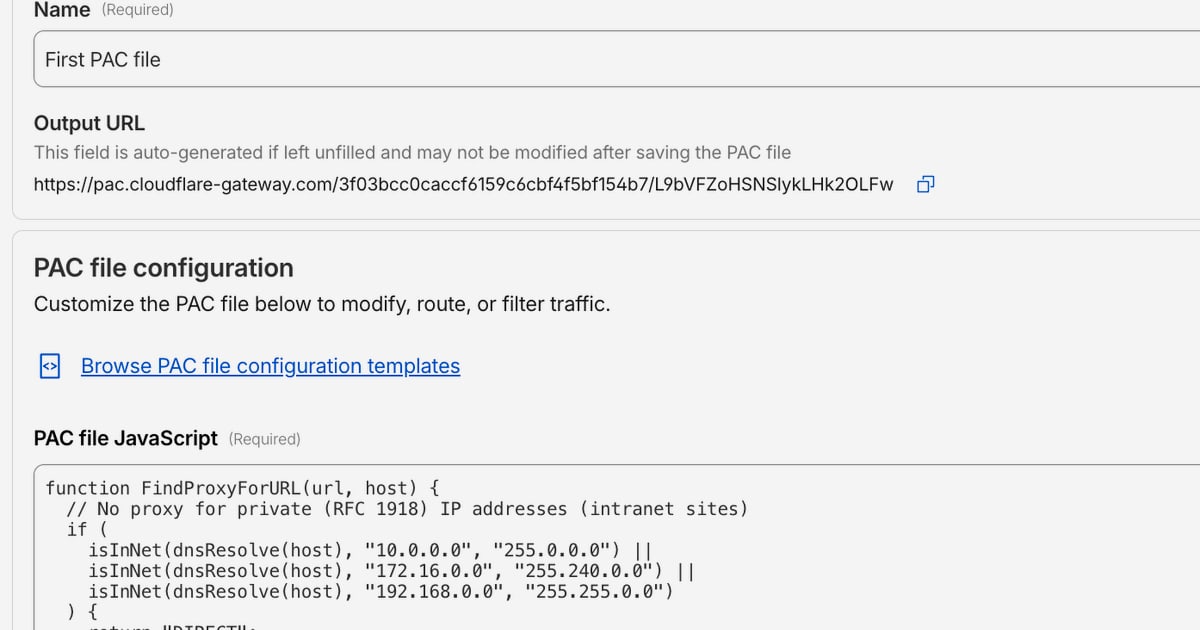
A PAC file is a JavaScript function that tells the client which proxy to use for a given URL. It is useful when different destinations need different routes, or when proxy settings must be distributed centrally.
A minimal PAC file looks like this:
function FindProxyForURL(url, host) {
  if (isPlainHostName(host) || shExpMatch(host, "*.internal.example")) {
    return "DIRECT";
  }
  return "PROXY proxy.example.net:8080; DIRECT";
}
FortiGate, for example, documents hosting a PAC file and pointing client browsers at it, including downloading the PAC file over HTTPS through a captive portal. Azure Firewall similarly supports hosting a PAC file and enabling proxy auto-configuration in the firewall policy. When you use PAC files at scale, host them on a trusted HTTPS endpoint and keep the logic simple—complex PAC scripts are hard to debug and can behave differently across clients.
Configuring Explicit Proxy on a Firewall
The firewall-side workflow is broadly similar across vendors:
- Enable the explicit proxy feature and choose a listening interface and port.
- Create a proxy policy that allows client traffic to reach the proxy and outbound traffic to reach the internet.
- Configure authentication if required, such as SAML or Kerberos single sign-on.
- Point clients at the proxy using a manual address or a PAC file.
- Add logging and security profiles so proxied traffic is inspected and auditable.
Vendor specifics differ. Palo Alto Networks requires a web proxy license on supported platforms and uses separate interfaces for client traffic, outbound traffic, and a loopback interface. FortiGate exposes explicit web proxy under Network settings and uses proxy policy objects. Azure Firewall configures explicit proxy in the firewall policy rather than on the firewall resource, and it requires a single HTTP port for both HTTP and HTTPS traffic.
Explicit Proxy Settings for Browser Automation
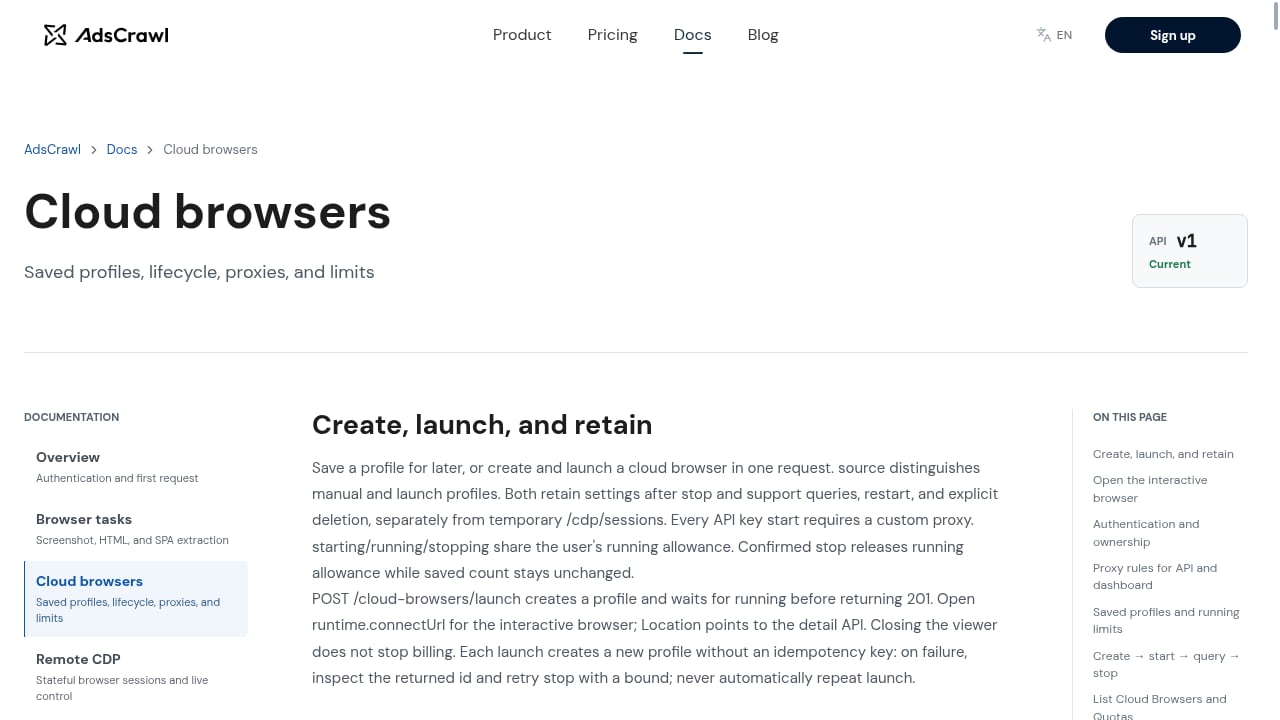
First viewport screenshot of Cloud Browsers | AdsCrawl Documentation.
When the client is a headless browser, explicit proxy settings are usually passed in code. Playwright and Puppeteer both accept a proxy server and optional credentials at launch:
// Puppeteer example
const browser = await puppeteer.launch({
  args: ['--proxy-server=http://proxy.example.net:8080']
});
// Playwright example
const browser = await chromium.launch({
  proxy: {
    server: 'http://proxy.example.net:8080',
    username: 'user',
    password: 'pass'
  }
});
In production scraping, explicit proxy settings interact with several concerns:
- IP reputation. Datacenter proxies may be blocked more often than residential proxies.
- Geo-targeting. The proxy's location determines the apparent region of the request.
- Session consistency. Some workflows need the same IP across multiple page loads.
- Authentication. Rotating proxies often require per-session credentials.
- Failure handling. A proxy that times out should trigger a retry or a fallback route, not a silent failure.
If you are running these workloads at scale, a managed cloud browser can remove much of the proxy plumbing. AdsCrawl, for example, lets teams connect Playwright, Puppeteer, or any CDP client to cloud Chromium browsers with residential proxy routing or custom proxies, so proxy configuration lives with the browser session rather than in every script. That is useful when you need consistent browser identity and region routing across many jobs. For a broader comparison of infrastructure options, see Remote Browser Infrastructure for Scraping: A Developer Guide.
Common Pitfalls and How to Avoid Them
- Forgetting the bypass list. Local and internal hosts can break when they are forced through a proxy. Always exclude
localhostand internal domains. - Mixing HTTP and HTTPS ports. Some firewalls require a single port for both; others expect separate settings. Check the vendor documentation before deploying.
- Hard-coding credentials. Use environment variables or a secrets manager, and rotate proxy credentials regularly.
- Ignoring CONNECT behavior. HTTPS traffic uses the CONNECT method. Some proxies block it by default, which breaks TLS sites.
- Assuming PAC files are portable. PAC scripts run in different engines across clients. Test on the actual browsers and automation stacks you use.
- Skipping logging. Without proxy logs, you cannot tell whether a failure came from the target site, the proxy, or the client.
Related reading
- Top 10 AI Browser Automation Software Products 2026 - Compare the top 10 AI browser automation software products in 2026 by autonomy, CAPTCHA handling, scalability, pricing, and best-fit use cases.
- How to Use AdsCrawl with Real-Time Public Data API Stack - Combine AdsCrawl's cloud browser automation with OpenWeb Ninja's Real-Time Public Data API Stack to render dynamic pages and enrich them with live SERP and web data.
- AdsCrawl vs Browser Use vs ApiFlash: Which API Fits? - Compare AdsCrawl, Browser Use, and ApiFlash across rendering, proxies, extraction, and pricing to pick the right browser or screenshot API.
Sources and further reading
- Explicit web proxy | FortiGate / FortiOS 8.0.2 - Administration Guide
FAQ
What is the difference between explicit and transparent proxy settings?
Explicit proxy settings are configured on the client, so the client knows it is using a proxy. Transparent proxies intercept traffic without client configuration, usually through network routing or inline inspection.
Do I need a PAC file for explicit proxy settings?
No. A PAC file is optional. You can configure a fixed proxy address and port manually. PAC files are useful when different destinations need different proxy routes or when you want central control over client behavior.
Can I use explicit proxy settings with Playwright or Puppeteer?
Yes. Both frameworks accept a proxy server and optional credentials at browser launch. For large-scale automation, a cloud browser platform can manage proxy routing and browser identity for you.
Why do some HTTPS sites fail when I enable an explicit proxy?
HTTPS traffic uses the CONNECT method, and some proxies block it or require additional policy rules. Check that the proxy allows CONNECT to the destination port and that TLS inspection settings are correct.
How do I test whether explicit proxy settings are working?
Request an IP-check endpoint through the configured client and compare the returned IP with your own. Then check the proxy logs to confirm the request was routed as expected.
Conclusion
Explicit proxy settings are simple in concept but easy to misconfigure in practice. The key is to know which layer you are changing—client, firewall, or automation code—and to keep bypass rules, authentication, and logging consistent across all three. For browser automation teams, the most reliable approach is to treat proxy configuration as part of the browser session, not as an afterthought in each script. Whether you configure it manually, through a PAC file, or through a managed cloud browser, explicit settings give you the visibility and control that transparent interception cannot.