
Playwright Node.js Client: Setup, Scraping, and Cloud Browsers
Learn how the Playwright Node.js client works: install, launch browsers, scrape dynamic pages, and scale with cloud browser APIs and proxies.
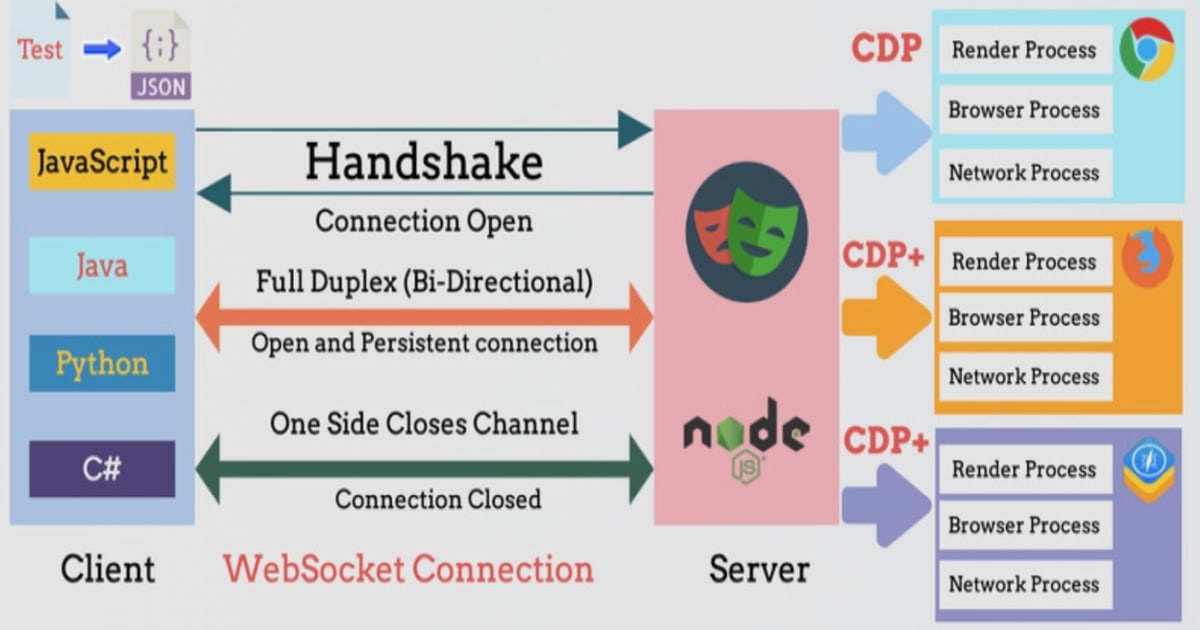
Playwright Node.js Client: Setup, Scraping, and Cloud Browsers
The Playwright Node.js client is the JavaScript entry point to a real browser engine you can drive from code. It renders pages the way a user's browser does, waits for elements automatically, and exposes a clean async API for navigation, interaction, and extraction. That makes it the default choice for scraping JavaScript-heavy sites, running end-to-end tests, and powering automation agents.
This guide walks through installing the client, writing your first script, handling dynamic content and infinite scroll, and scaling beyond a single local machine with cloud browsers and proxy routing.
What the Playwright Node.js client actually is
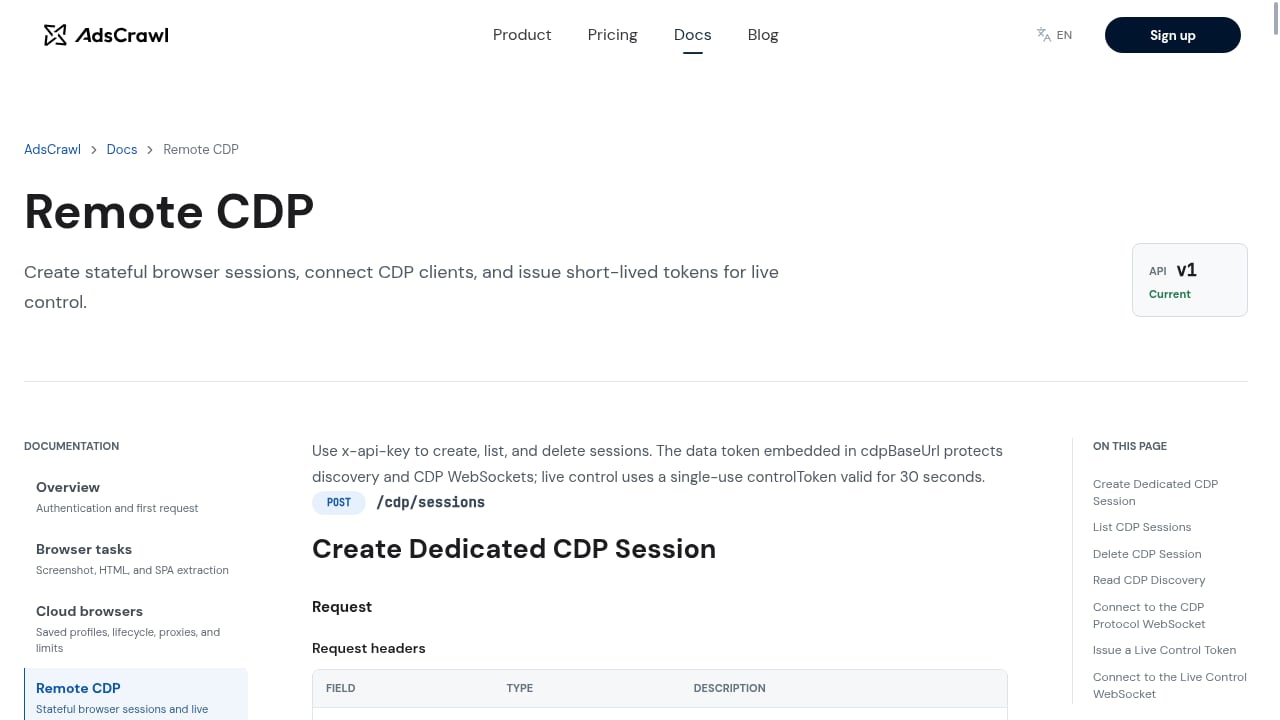
First viewport screenshot of Remote CDP | AdsCrawl Documentation.
Playwright is an open-source browser automation library originally developed by Microsoft. The Node.js client is the npm package (playwright or @playwright/test) that lets you control Chromium, Firefox, and WebKit from JavaScript or TypeScript.
Unlike HTTP-only clients such as axios or node-fetch, Playwright launches an actual browser process. JavaScript executes, SPAs hydrate, and content that appears after the initial response is available to your script.
Key capabilities you get out of the box:
- Auto-waiting — actions wait for elements to be actionable, which removes most race conditions.
- Multi-browser support — the same script runs on Chromium, Firefox, and WebKit.
- Request interception — block images, fonts, and analytics to speed up runs.
- Screenshots and PDFs — capture visual output natively.
- Browser contexts — isolated profiles with separate cookies and storage.
Installing the Playwright Node.js client
The fastest path is the official scaffolding command, which creates a project, installs dependencies, and downloads browser binaries:
npm init playwright@latest
During setup you choose TypeScript or JavaScript, a test folder name, whether to add a GitHub Actions workflow, and whether to install browsers. The command is safe to re-run; it will not overwrite existing tests.
If you only need the automation library without the test runner:
npm install playwright
npx playwright install
System requirements are current Node.js LTS releases on Windows 11+, macOS 14+, or modern Debian and Ubuntu builds. The official installation docs list exact supported versions.
Your first Playwright Node.js script
First viewport screenshot of API Schemas | AdsCrawl Documentation.
A minimal scraping script follows the same pattern every time: launch, create a context, open a page, navigate, extract, close.
const { chromium } = require('playwright');

async function run() {
  const browser = await chromium.launch({ headless: true });
  const context = await browser.newContext();
  const page = await context.newPage();

  await page.goto('https://example.com', { waitUntil: 'networkidle' });
  console.log(await page.title());
  console.log(await page.content());

  await browser.close();
}

run();
What each step does:
chromium.launch()starts a browser process. Setheadless: falsewhile debugging.browser.newContext()creates an isolated profile, similar to a fresh incognito window.context.newPage()opens a tab inside that context.page.goto()navigates and waits according to thewaitUntiloption.page.content()returns the fully rendered HTML after JavaScript has run.browser.close()frees the process and any associated resources.
Extracting structured data from rendered pages
Once you have HTML, you can parse it with a library like Cheerio or query the DOM directly through Playwright locators. Locators are usually the better option because they respect auto-waiting and stay resilient to layout changes.
const items = await page.locator('li.product-card').evaluateAll((nodes) =>
  nodes.map((node) => ({
    title: node.querySelector('h3')?.textContent?.trim(),
    price: node.querySelector('.price')?.textContent?.trim(),
  }))
);
For pages where content loads after the first paint, wait for a specific selector before extracting:
await page.waitForSelector('h1.product-title');
This single line eliminates the most common cause of empty scraping results: reading the DOM before the framework has rendered it.
Handling dynamic content and infinite scroll
Infinite scroll is a standard pattern on marketplaces and social feeds. The reliable approach is to scroll until the page height stops changing.
let previousHeight = 0;
while (true) {
  previousHeight = await page.evaluate(() => document.body.scrollHeight);
  await page.evaluate(() => window.scrollTo(0, document.body.scrollHeight));
  await page.waitForTimeout(1500);
  const newHeight = await page.evaluate(() => document.body.scrollHeight);
  if (newHeight === previousHeight) break;
}
For interaction-heavy flows, combine locators with typing and clicking:
await page.getByPlaceholder('Search').fill('wireless headphones');
await page.getByRole('button', { name: 'Search' }).click();
await page.waitForSelector('.results-grid');
These patterns cover most scraping scenarios, but they still assume the browser runs on your machine with your IP address.
Where local Playwright breaks down at scale
Running Playwright locally works until you hit production constraints:
- IP reputation — a single datacenter IP gets rate-limited or blocked quickly.
- Fingerprinting — headless Chromium on a bare server is easy to detect.
- Concurrency — each browser instance consumes memory and CPU, so a laptop caps out fast.
- Session state — cookies, logins, and storage need to persist across runs.
- Infrastructure — managing browser binaries, patches, and proxies becomes a job in itself.
These are the reasons teams move from local execution to a managed browser layer.
Connecting Playwright to a cloud browser
First viewport screenshot of Browser Tasks | AdsCrawl Documentation.
A cloud browser platform runs real Chromium instances on remote infrastructure and exposes them over the Chrome DevTools Protocol (CDP). Playwright can attach to those sessions with chromium.connectOverCDP(), so your existing scripts keep working with a different connection target.
const browser = await chromium.connectOverCDP(connectUrl);
const context = browser.contexts()[0];
const page = await context.newPage();

await page.goto('https://example.com');
console.log(await page.content());

await browser.close();
This pattern is what platforms like AdsCrawl provide. AdsCrawl is a managed cloud browser and browser automation API that lets you connect Playwright, Puppeteer, or any CDP client to real cloud Chromium browsers, with residential proxy routing, persistent profiles, and structured output options. If you want the Puppeteer equivalent of this setup, the AdsCrawl with Puppeteer guide covers the same connection model.
For teams comparing infrastructure options, the browser API comparison guide breaks down CDP control, rendering, and pricing across platforms.
Proxy routing and anti-bot considerations
Proxies are not optional once you move past small jobs. Rotating residential proxies give each request a different exit IP, which reduces the chance of triggering rate limits or blocks.
When using a cloud browser, proxy configuration is typically handled at the session level rather than in your script. You pass proxy settings when creating the browser session, and the remote Chromium routes traffic accordingly. This keeps your Playwright code clean and avoids hardcoding credentials.
A few practical rules:
- Rotate IPs per session, not per request, when you need consistent state.
- Match proxy geography to the target site's audience when content varies by region.
- Keep request rates reasonable; aggressive concurrency defeats the purpose of residential IPs.
- Reuse authenticated sessions instead of logging in repeatedly.
Choosing between local and cloud Playwright
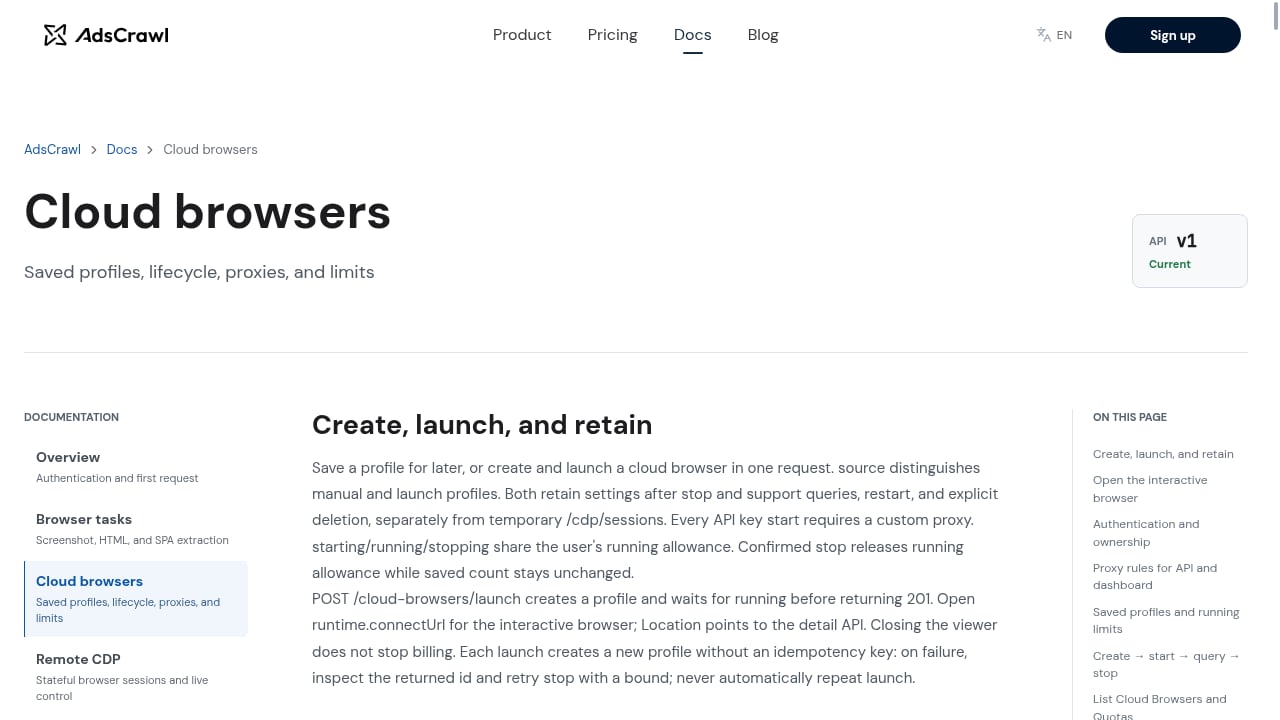
First viewport screenshot of Cloud Browsers | AdsCrawl Documentation.
| Factor | Local Playwright | Cloud browser API |
|---|---|---|
| Setup effort | Install and manage browsers | Connect over CDP |
| IP diversity | Single machine IP | Rotating residential proxies |
| Concurrency | Limited by hardware | Scales with plan |
| Session persistence | Manual storage state files | Managed profiles |
| Anti-bot resilience | Depends on your patches | Fingerprint and proxy handling |
| Cost model | Infrastructure and time | Credit-based plans |
Local execution is the right choice for development, debugging, and small internal tests. Cloud execution makes sense when you need scale, IP diversity, or persistent identities across long-running jobs.
Playwright MCP and agent-driven automation
A newer pattern is exposing Playwright to language models through the Model Context Protocol. The Playwright MCP server provides browser automation tools that operate on structured accessibility snapshots rather than screenshots, which makes agent interactions more reliable and cheaper to run. It works with VS Code, Cursor, Claude Desktop, and other MCP clients.
If you are building agent workflows, this is worth understanding because it changes how the browser is driven: instead of writing selectors by hand, the agent reads the accessibility tree and acts on element references. The Playwright MCP documentation covers configuration, profile modes, and idle timeouts.
Common pitfalls and how to avoid them
- Reading the DOM too early — always wait for a selector or use
waitUntil: 'networkidle'. - Leaking browser processes — wrap scripts in
try/finallyand always callbrowser.close(). - Hardcoding credentials — use environment variables for proxy and API keys.
- Ignoring context isolation — separate contexts per task prevent cookie bleed between jobs.
- Over-scrolling — cap scroll iterations to avoid infinite loops on broken pages.
- Skipping error handling — navigation timeouts and selector misses should be caught and logged.
Related reading
- AdsCrawl vs Scrapy vs Thunderbit: Which Scraper Wins in 2026? - Compare AdsCrawl, Scrapy, and Thunderbit for web scraping in 2026. See which tool fits dynamic sites, Python pipelines, or no-code extraction.
- AdsCrawl vs Steel: Browser Infrastructure for AI Agents - AdsCrawl vs Steel compared: CDP control, Markdown extraction, proxy routing, pricing, and which browser API fits AI agents, scraping, and automation.
Sources and further reading
- Playwright Web Scraping with Node.js: Complete Guide (2026) - Learn how to scrape websites using Playwright and Node.js. Covers setup, dynamic content, infinite scroll, stealth mode, proxies, and more with code examples.
FAQ
What is the Playwright Node.js client?
It is the npm package that lets you control Chromium, Firefox, and WebKit from JavaScript or TypeScript. It includes the automation library and, separately, the Playwright Test runner.
Do I need Node.js to use Playwright?
For the Node.js client, yes. Playwright also offers Python, Java, and .NET clients, but the Node.js package requires a current Node.js LTS release.
Can Playwright scrape JavaScript-rendered pages?
Yes. Playwright runs a real browser, so content generated by frameworks like React, Vue, or Angular is available after rendering. Use waitForSelector or waitUntil: 'networkidle' to time extraction correctly.
How do I use Playwright with proxies?
Pass proxy settings when launching the browser or creating a context. With a cloud browser platform, proxy routing is configured at the session level, so your script only needs the connection URL.
Is Playwright better than Puppeteer for scraping?
Both drive Chromium. Playwright adds multi-browser support, stronger auto-waiting, and a built-in test runner. Puppeteer has a smaller API surface and a large existing ecosystem. The right choice depends on your stack and whether you need cross-browser coverage.
Can I connect Playwright to a remote browser?
Yes. chromium.connectOverCDP() attaches Playwright to any browser exposing a CDP endpoint, including managed cloud browsers. This is the standard way to combine Playwright's API with remote infrastructure.
Conclusion
The Playwright Node.js client gives you a real browser under programmatic control, which is why it handles dynamic pages that HTTP clients cannot. Start locally to learn the API: install the package, write a launch-and-extract script, and add waits for rendered content.
When you outgrow a single machine, the same code connects to a cloud browser over CDP. That shift solves IP reputation, concurrency, and session persistence without rewriting your automation logic. If you are evaluating that transition, the 2026 platform ranking compares the leading options on anti-bot handling, session persistence, and cost.